# MathType 安装及 Word 菜单项集成


安装 Mathtype 过程记录，并解决集成到 Word 菜单栏的问题。

<!--more-->

## MathType 安装问题

### 安装并破解

从六维空间上下载的[MathType 7.2](http://bt.neu6.edu.cn/thread-1635051-1-1.html)版本，按照说明

1. 首先安装 MathType-win-zh7.2.exe，安装过程一切顺利，因为安装需要向Office 添加加载项，所以需要将Office 一切程序都关闭；

2. 以防意外，打开之前MathType 和Office 之前，先进行破解，提供的破解软件有两个，作用不同：

* **[neubt]MathType替换原文件.exe**：替换MathType 根目录的主启动程序 MathType.exe，作用是去掉打开程序时提示测试版到期的弹窗通知。
  
* **[neubt]MathType7.xCrack.zip**：解压后得到mathtypelib.exe，替换MathType 根目录下System 子文件夹里的同名文件。
  
3. 完成以上两个文件的替换后，启动 MathType，会弹出一个对话框，但按钮上的字都变成了问号，不管他，直接叉掉对话框，然后可以发现功能完善，应该是已经成功破解。

4. 打开Word，菜单栏上应该会多出一个 MathType的菜单项，说明安装成功，如果没有菜单项，请看下文解决方案。

### Word 没有MathType 菜单项

* **问题：**

首先来说，MathType 正确加载的话，Word 的菜单栏上会有 MathType，如下
<div align="center" ><img src="https://img1.wlcheng.cc/images_for_blogs/mathtype-setup-for-word_Image001_2021-07-24-01-06-17.png" alt="mathtype-setup-for-word_Image001_2021-07-24-01-06-17" width="75%" style="box-shadow: 0 3px 6px rgba(0,0,0,0.16), 0 3px 6px rgba(0,0,0,0.23);border-radius:10px;"/></div>

而现在问题是，打开Word，菜单栏没有 MathType 项，
<div align="center" ><img src="https://img1.wlcheng.cc/images_for_blogs/mathtype-setup-for-word_Image002_2021-07-24-01-06-59.png" alt="mathtype-setup-for-word_Image002_2021-07-24-01-06-59" width="75%" style="box-shadow: 0 3px 6px rgba(0,0,0,0.16), 0 3px 6px rgba(0,0,0,0.23);border-radius:10px;"/></div>

* **原因：**

[[1]](https://docs.wiris.com/en/mathtype/mathtype_desktop/support_notices/tn133#windows) 中给出的原因可以描述为

"当 Microsoft Office 自动更新程序运行并安装更新时，有时会禁用加载项，这样就会删除任何工具栏/功能区附加项。"

Word 上的 MathType加载项要能正确运行并使用，须满足：

1. **MathType 正确安装；**
2. **Word 正确加载 MathType 提供的加载项文件。**

可见在MathType 本身安装无误情况下(指MathType **软件本身**能正常使用)，Word 没有MathType菜单项的原因大概率就是**因为 Word 没能正确的加载 MathType 加载项。**

* **解决方案：**

此时虽然可以迂回的通过以下方式插入公式：

1. 通过插入对象的方式，插入->对象->选择MathType对象；
2. 直接从MathType 软件里编辑好的公式复制进Word。

但是，如果要实现插入带编号公式等较高级的功能的话，还是用集成的 MathType工具栏方便的多，从前面的图就可见一斑。

* **准备工作：**

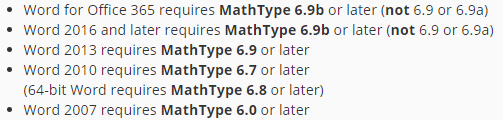
首先查看 Office Word 版本以及 MathType版本，兼容关系为

<div align="center" ><img src="https://img1.wlcheng.cc/images_for_blogs/mathtype-setup-for-word_Image003_2021-07-24-01-07-19.png" alt="mathtype-setup-for-word_Image003_2021-07-24-01-07-19" width="65%" style="box-shadow: 0 3px 6px rgba(0,0,0,0.16), 0 3px 6px rgba(0,0,0,0.23);border-radius:10px;"/></div>

查看我的版本分别为

**Word**：**文件**->**账户**->**关于**-> Office **365 32**位，因此需要MathType 版本大于 **6.9b**

<div align="center" ><img src="https://img1.wlcheng.cc/images_for_blogs/mathtype-setup-for-word_Image004_2021-07-24-01-07-53.png" alt="mathtype-setup-for-word_Image004_2021-07-24-01-07-53" width="75%" style="box-shadow: 0 3px 6px rgba(0,0,0,0.16), 0 3px 6px rgba(0,0,0,0.23);border-radius:10px;"/></div>

**MathType**：**关于**->**7.2.0.420** > **6.9b**

<div align="center" ><img src="https://img1.wlcheng.cc/images_for_blogs/mathtype-setup-for-word_Image005_2021-07-24-01-08-03.png" alt="mathtype-setup-for-word_Image005_2021-07-24-01-08-03" width="45%" style="box-shadow: 0 3px 6px rgba(0,0,0,0.16), 0 3px 6px rgba(0,0,0,0.23);border-radius:10px;"/></div>

确定Word 和 MathType安装路径：
* **Office** 安装路径：D:\Program Files (x86)\Microsoft Office\

* **MathType** 路径：D:\Math\MathType\

安装路径可能不同，根据自己情况而定。

* **步骤：**

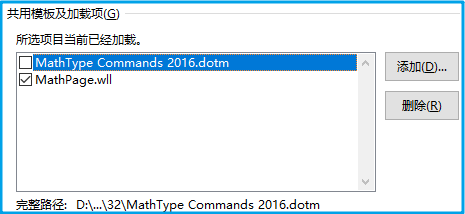
Word菜单栏->**文件**->**选项**->**加载项**->底部**管理**下拉框选择 **Word加载项** 并点击**转到**，弹出类似下面的对话框，
<div align="center" ><img src="https://img1.wlcheng.cc/images_for_blogs/mathtype-setup-for-word_Image006_2021-07-24-01-08-15.png" alt="mathtype-setup-for-word_Image006_2021-07-24-01-08-15" width="55%" style="box-shadow: 0 3px 6px rgba(0,0,0,0.16), 0 3px 6px rgba(0,0,0,0.23);border-radius:10px;"/></div>

 没问题的情况下，这里的第一项应该是被勾选上的，如下说明。
<div align="center" ><img src="https://img1.wlcheng.cc/images_for_blogs/mathtype-setup-for-word_Image007_2021-07-24-01-08-25.png" alt="mathtype-setup-for-word_Image007_2021-07-24-01-08-25" width="75%" style="box-shadow: 0 3px 6px rgba(0,0,0,0.16), 0 3px 6px rgba(0,0,0,0.23);border-radius:10px;"/></div>

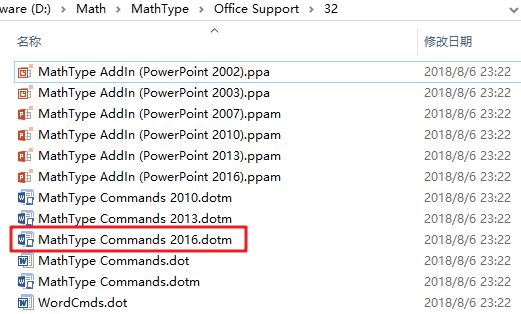
如果，没有以上对话框中的项，则选择从以下两个目录之一中 **添加** 正确版本的 **.dotm**文件，然后勾选并确定。

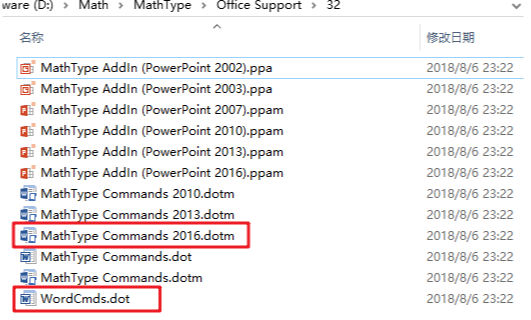
D:\Math\MathType\Office Support\32 （32位 Office）  
D:\Math\MathType\Office Support\64 （64位 Office）

对于我的版本，选择 **MathType Commands 2016.dotm** 这一个
<div align="center" ><img src="https://img1.wlcheng.cc/images_for_blogs/mathtype-setup-for-word_Image008_2021-07-24-01-08-36.png" alt="mathtype-setup-for-word_Image008_2021-07-24-01-08-36" width="75%" style="box-shadow: 0 3px 6px rgba(0,0,0,0.16), 0 3px 6px rgba(0,0,0,0.23);border-radius:10px;"/></div>

勾选  **MathType Commands 2016.dotm** 项并 确定后，Word会加载出MathType 的菜单项，如图1所示。

然而，然而，然而事情并非如此简单，

当关闭Word，并重新打开后，忙半天加上的MathType 菜单项又没啦。

这么看应该是设置的问题，在Word 启动时，并没有自动加载 MathType 加载项。那么要自动加载，是不是就得把这个MathType Commands 2016.dotm 文件放到Word 的默认加载目录下面？

但是再次按照第3步，打开Word 加载项对话框，发现有这一项，但却没有勾选。那么怎么设置为默认勾选呢？

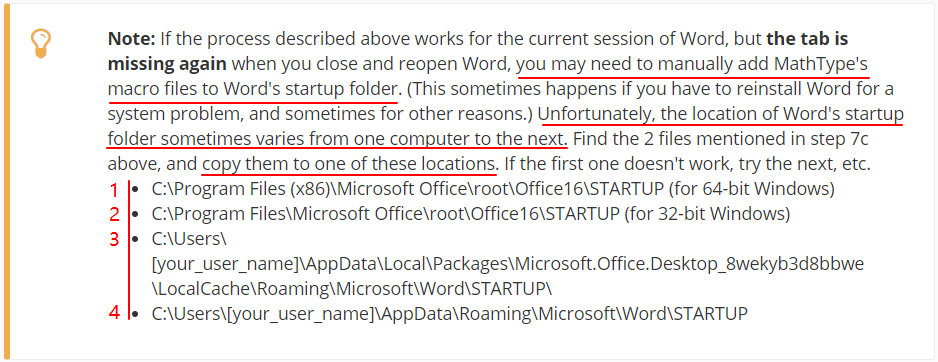
幸而 [[2]](https://docs.wiris.com/en/mathtype/mathtype_desktop/support_notices/tn133-word2016-32) 对此也给出了解决方案：由于不同版本的系统、Office软件或者不同用户自定义的原因，Word 的加载项路径可能不一样。

<div align="center" ><img src="https://img1.wlcheng.cc/images_for_blogs/mathtype-setup-for-word_Image009_2021-07-24-01-08-51.png" alt="mathtype-setup-for-word_Image009_2021-07-24-01-08-51" width="75%" style="box-shadow: 0 3px 6px rgba(0,0,0,0.16), 0 3px 6px rgba(0,0,0,0.23);border-radius:10px;"/></div>

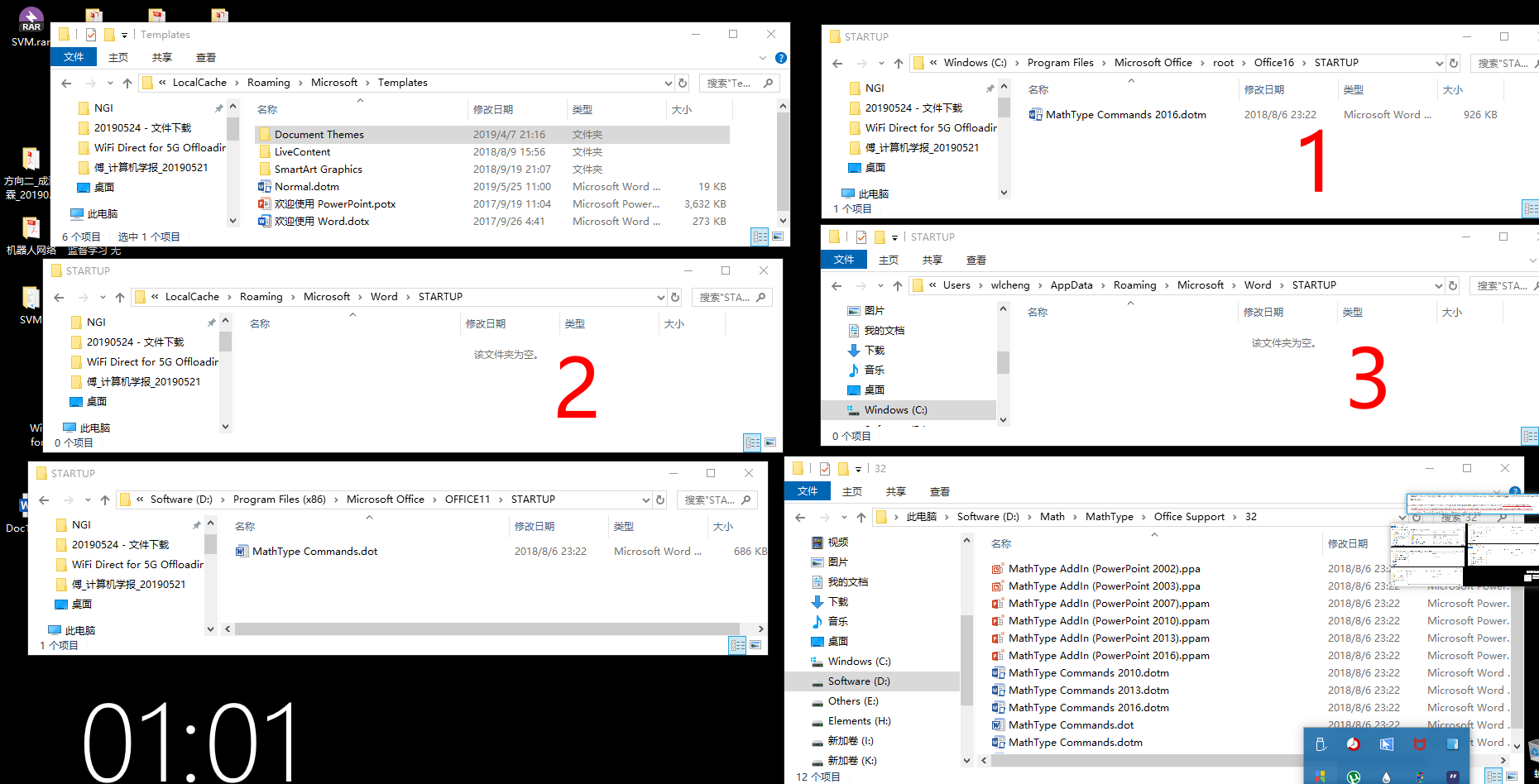
根据说明，需要将前面的两个文件拷贝到 Word的加载项（启动项）目录下面，目录存在以上图中 3种可能，图中 1和 2根据 Office 是32位/64位只取其一。

<div align="center" ><img src="https://img1.wlcheng.cc/images_for_blogs/mathtype-setup-for-word_Image010_2021-07-24-01-09-07.png" alt="mathtype-setup-for-word_Image010_2021-07-24-01-09-07" width="75%" style="box-shadow: 0 3px 6px rgba(0,0,0,0.16), 0 3px 6px rgba(0,0,0,0.23);border-radius:10px;"/></div>

以做对比，将可能的三个目录位置都打开，如下1、2、3，依次将这两个文件放到这三个目录下，

<div align="center" ><img src="https://img1.wlcheng.cc/images_for_blogs/mathtype-setup-for-word_Image011_2021-07-24-01-09-17.png" alt="mathtype-setup-for-word_Image011_2021-07-24-01-09-17" width="100%" style="box-shadow: 0 3px 6px rgba(0,0,0,0.16), 0 3px 6px rgba(0,0,0,0.23);border-radius:10px;"/></div>

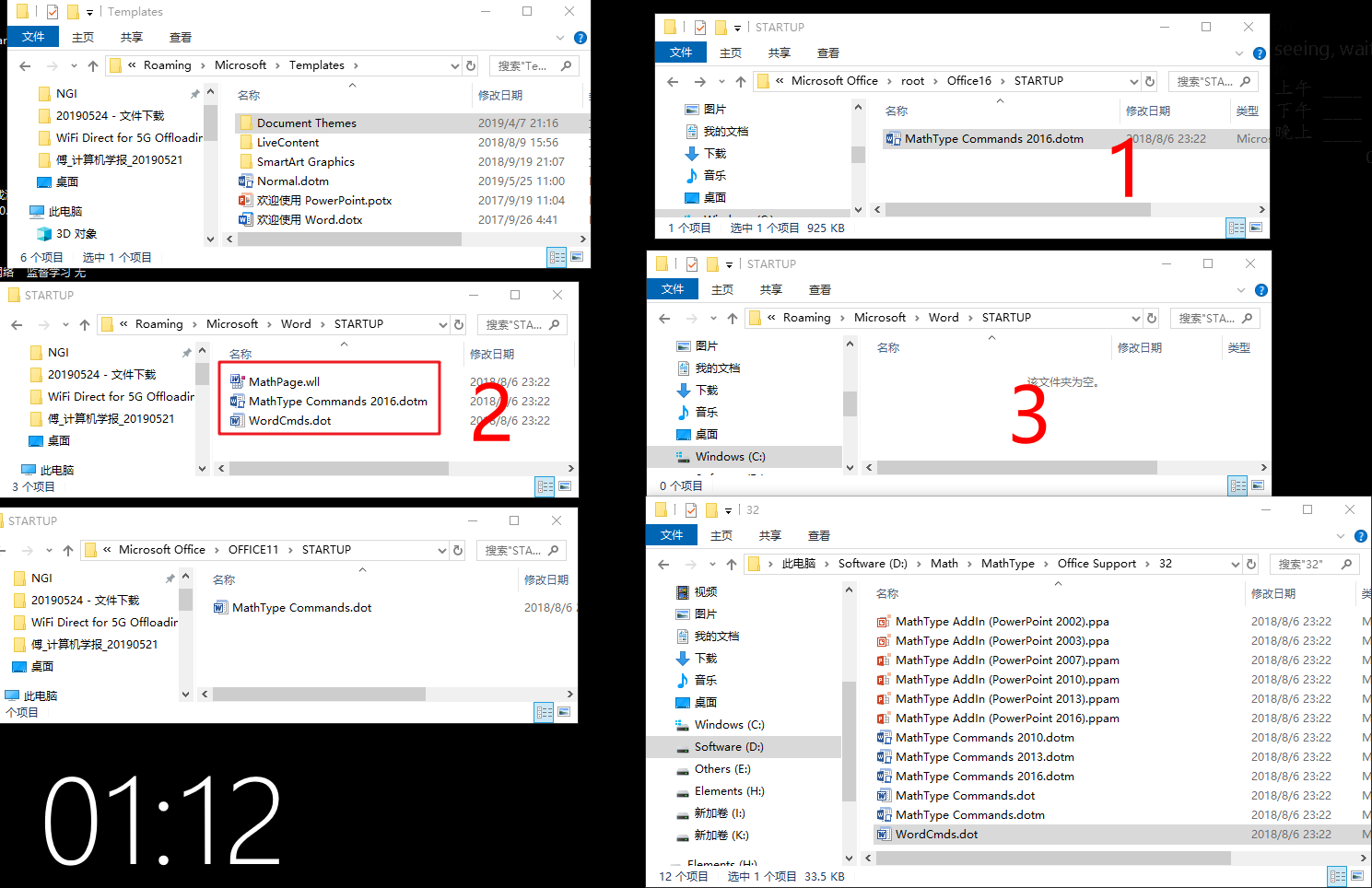
经过尝试，，放在 2对应路径下时，Word成功加载了MathType菜单项。

<div align="center" ><img src="https://img1.wlcheng.cc/images_for_blogs/mathtype-setup-for-word_Image012_2021-07-24-01-09-27.png" alt="mathtype-setup-for-word_Image012_2021-07-24-01-09-27" width="100%" style="box-shadow: 0 3px 6px rgba(0,0,0,0.16), 0 3px 6px rgba(0,0,0,0.23);border-radius:10px;"/></div>

比较前后两张图，此处有一个问题，下图中除了拷贝进去的两个模板文件外，还有一个MathPage.wll，这个文件实际上是一种DLL文件，也不可少，也是来自于MathType的安装目录，事实上，当MathType安装成功后，会自动将其拷贝到这个 2 对应的目录，一般无需手动添加，如果发现没有，可以从MathType安装根目录下的MathType文件夹里面找到，如下图，根据32位或64位选择。

<div align="center" ><img src="https://img1.wlcheng.cc/images_for_blogs/mathtype-setup-for-word_Image013_2021-07-24-01-09-39.png" alt="mathtype-setup-for-word_Image013_2021-07-24-01-09-39" width="75%" style="box-shadow: 0 3px 6px rgba(0,0,0,0.16), 0 3px 6px rgba(0,0,0,0.23);border-radius:10px;"/></div>

* **总结**

最后，来回顾一下过程，根据 [常用设置](evernote:///view/19609389/s20/77c14f83-dd5c-41e2-9c9c-117480f4003d/77c14f83-dd5c-41e2-9c9c-117480f4003d/) 中的，《查看 Word 相关各类文件的默认位置》就能够查看Word 默认的启动项位置，正好是上面给出的第二种目录。

因此，解决以上问题的正确思路应该是，将模板加载项文件拷贝到 Word的默认的启动项位置目录下。


**参考：**

[[1] MathType Toolbar/Tab has disappeared from Microsoft Word](https://docs.wiris.com/en/mathtype/mathtype_desktop/support_notices/tn133)  
[[2] MathType Tab has disappeared from Microsoft Word 2016 and later for Windows](https://docs.wiris.com/en/mathtype/mathtype_desktop/support_notices/tn133-word2016-32#mathtype_tab_has_disappeared_from_microsoft_word_2016_and_later_for_windows)